HOWTO: use Gource with Perforce

You may have heard of Gource, the source code control visualization gadget. It’s a utility that creates an animation of the activity in your source control system, giving a unique view of the life of a project over time. I finally got some time to play around with it a couple weeks ago, and I used it to make a video of the development activity on ElectricAccelerator over the past 9 years. The “full length” version is about 30 minutes long and plays on a loop in the breakroom at the office, but here’s a shorter, anonymized version (I recommend putting this or this in the background to provide a soundtrack for the animation):

I don’t think it’s necessarily very useful, but there’s no denying that it’s enthralling to watch, especially when it represents your own project. This visualization does really drive home one thing though: just how active development on ElectricAccelerator is, even now, after 9 years. I used to think that we would be “done” at some point, maybe a few years after we started. Now I think we may never be — in fact, I hope we aren’t!

Integrating Gource and Perforce

Gource is what I call “falling over easy” to use. At least, it is if you’re using one of the source control systems it supports natively. Unfortunately, Gource doesn’t directly support Perforce, our source control system, so to make the video above, I had to convert our Perforce commit logs to a format Gource could handle. That’s not too hard to do actually, and in fact several people have written scripts to do it.

Only trouble is, those adapters don’t handle big projects with many branches very well. Instead, they seem to be designed to handle simple projects with one or a few branches, or to enable visualization of just one of the many branches in your project. Either way, that doesn’t work for us. We’ve got about 30 branches in the Accelerator depot, since we make a new branch for each release, as well as for specific large features that we expect will take a long time to complete, so we can’t simply show all the branches. And if we show just one branch, such as our main branch, the trunk of the tree, the visualization will tend to significantly over-represent my contributions, because I handle most of the cross-branch merges.

So I wrote my own adapter: p42gource.tcl. The key differences in this adapter compared to others are that it incorporates activity from as many branches as you specify; and it ignores branch and integrate operations, since those are merely echoes of “interesting” operations on other branches.

Now, getting from Perforce commit logs to Gource is simple (NB: before using p42gource.tcl, you have to edit it to add the list of branches you want to include in the conversion):

$ # Get the id of the last submitted changelist
$ p4 changes -s submitted -m 1 | awk '{print $2}'
50594
$ # Get the details for each changelist
$ for n in {1..50594} ; do p4 describe -s $n >> p4.log ; done
$ # Create a Gource-style log from the Perforce data
$ tclsh p42gource.tcl < p4.log > gource.log
$ # Run Gource
$ gource --log-format custom gource.log

Give it a try!
What’s new in ElectricAccelerator 5.4.0

This month, Electric Cloud announced the release of ElectricAccelerator 5.4. This version adds a lot of great new features, including support for GNU Make’s .SECONDEXPANSION feature and the use of $(eval) in rule bodies, and compatibility with Cygwin 1.7.7. In addition to those long-awaited improvements, here are the things that I’m most excited about in this release:

New cluster utilization reports

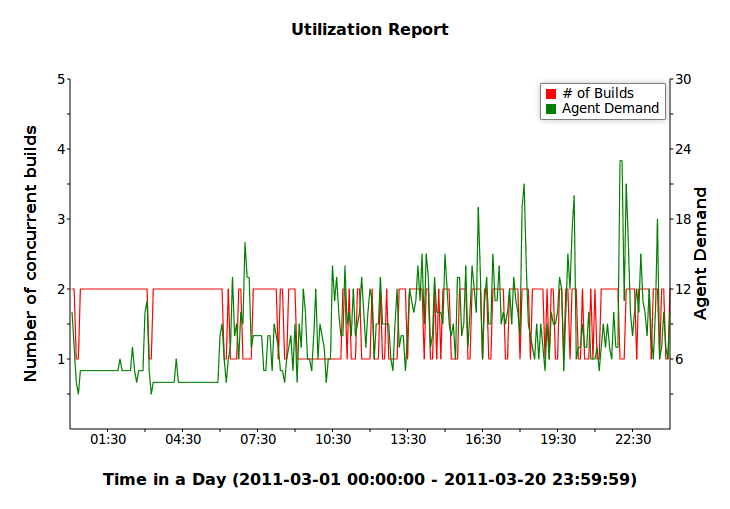
Accelerator 5.4 includes two new reports designed to give you greater insight into the load on and utilization of your cluster: the Cluster Utilization report and the Sealevel report:

The Cluster Utilization report shows, over the course of a typical day, the average number of builds running and the average combined agent demand from all running builds. The Sealevel report shows the raw agent demand data, plotted over the course of a day. The colored bands correspond to various cluster sizes, including the current cluster size and several hypothetical sizes, so you can see at a glance how large you need to make the cluster in order to satisfy all the agent requests. The percentages on the right side of the graph indicate the portion of agent requests that are left unsatisfied with a cluster of the given size. In the example above, all but 1% of agent requests would be satisfied if the cluster had 40 agents.

Reduced directory creation conflicts

Raise your hand if you’ve ever seen this pattern in a makefile:

%.o: %.c
        @mkdir -p $(dir $@)
        @$(COMPILE.c) -o $@ $<

It’s a common way to ensure the output directory exists before trying to create a file in it. Unfortunately, with a strict application of Accelerator’s conflict detection algorithm, this pattern causes numerous conflicts and poor performance when the build is run without an up-to-date history file. In Accelerator 5.4.0, we improved the algorithm so that this common case is no longer considered a conflict. If you always run with a good history file, this change will not be helpful to you. But sometimes that’s not possible — for example, if you’re building third-party code that’s just gotten a major update — then you’re going to really love this improvement. The Android source code is a perfect example: a from-scratch no-history build of the Gingerbread base used to take 144 minutes. Now it runs in just 22 minutes on the same hardware — 6.5x faster.

New Linux sandbox implementation

The last feature I want to mention here is the new sandbox implementation for Linux. The sandbox is the means by which Accelerator is able to present a different view of the filesystem, from a different point of time during the build, to each of the jobs running concurrently on a given agent host. Without the sandbox, it would be impossible on Linux to simultaneously represent a given file as existent to one job, and non-existent to another.

In previous versions of Accelerator, the Linux sandbox implementation was effective, but ultimately limited in its capabilities. Chief among those limitations was an inability to interoperate with autofs 5.x. There were several workarounds available, but each of those in turn had its own shortcomings.

Accelerator 5.4 uses a different underlying technology to implement the sandbox component: lofs, the loopback filesystem. This is a concept borrowed from Solaris, which has had a vendor-supplied version for years; Linux has nothing that matches the depth of functionality provided by Solaris, so we wrote our own. The net result of this effort is that the limitations of the previous implementation have been entirely eliminated. In particular, Accelerator 5.4 can interoperate with autofs 5.x without the need for any workarounds or awkward configuration.

Afterthoughts

It’s been a long time in coming, but I think it was well worth the wait. I’m very proud to have been part of this product release, and I’m thrilled with the work my team has put into it.

Accelerator 5.4 is available immediately for current customers. New customers should contact sales@electric-cloud.com.

Bash completion for ElectricAccelerator

Maybe you haven’t noticed, but Electric Make (emake) has a lot of command-line options. Besides the options it inherits from emulating GNU make (or NMAKE), it has about fifty of its own options, from –emake-annodetail to –emake-tmpdir. Remembering them all, and their exact spelling, and their allowed values is a nuisance, even for me — and I created half of those options myself. So, I spent the last few evenings hacking together Bash TAB completion support for emake (download from github here), with pretty good results:

$ emake --emake-h<TAB><TAB>
--emake-history=        --emake-historyfile=  
--emake-history-force=

In addition to helping with emake options, it can help me remember the valid values for those options:

$ emake --emake-history=<TAB><TAB>
create  merge  read

It handles options with compounds values too, like –emake-annodetail:

$ emake --emake-annodetail=<TAB><TAB>
basic  env  file  history  lookup  registry  waiting
$ emake --emake-annodetail=file,<TAB><TAB>
file,basic     file,history   file,registry  
file,env       file,lookup    file,waiting   
$ emake --emake-annodetail=file,history,<TAB><TAB>
file,history,basic     file,history,registry
file,history,env       file,history,waiting
file,history,lookup    

It can even do TAB completion on targets in makefiles, thanks to some clever code inherited from the gmake completion module that I used as the basis for my emake completion module:

$ emake <TAB><TAB>
all        check      distclean  Makefile   
buildtest  clean      install    

And since I was already tinkering with TAB completion for emake, it wasn’t much work to do TAB completion for ElectricInsight (einsight) as well. In that case, TAB completion doesn’t really do a whole lot — einsight doesn’t have many command-line options. But intelligent TAB completion is still pretty handy for one specific reason: I can make it only match files with the correct extension — .xml and .anno:

$ ls
build-272.dlog  build-272.xml
build-273.dlog  build-273.xml
$ einsight <TAB>
$ einsight build-27<TAB><TAB>
build-272.xml  build-273.xml  

Rather than suggesting all of the files in the directory, Bash now knows to suggest only the .xml files when I invoke einsight.

I was surprised to find that setting up custom TAB completion for my applications is pretty easy: just create a shell function that generates a list of possible completions based on a partial command-line, then instruct the shell to use that function to handle completions for whatever command you like. As far as I can tell, the mechanism is pretty flexible — you’re limited only by your own Bash scripting skill. If you’re interested in doing something like this yourself, I suggest you check out these online tutorials, as well as the Bash Completion project, which includes completion modules for nearly 200 commands.

Availability and installation

You can download the TAB completion module for emake and einsight from my github repository. As far as installation goes, you have a few options:

  1. Hook into the bash-completion package. Many modern Linux distributions, including Ubuntu 9.x/10.x and SUSE 11 install the bash-completion package and set up the default bashrc file to use it. On those systems, you can just copy accelerator.sh to /etc/bash_completion.d.
  2. Modify your personal .bashrc. If your system doesn’t have the bash-completion package, or if you can’t add files to etc, you can modify your own .bashrc to source accelerator.sh on startup. In that case I would rename it to $(HOME)/.accelerator.sh, so that it is normally hidden from directory listings, and add source $(HOME)/.accelerator.sh to your .bashrc file.

The image at the top of this post is free; you can redestribute it and/or modify it according to the terms of the Free Art License; it is based on this image by Aurelio Heckert.

An Agent Utilization Report for ElectricInsight

A few weeks ago I showed how to determine the number of agents used during an ElectricAccelerator build, using some simple analysis of the annotation file it generates. But, I made the unfortunate choice of a pie chart to display the results, and a couple of readers called me to task for that decision. Pie charts, of course, are notoriously hard to use effectively. So, it was back to the drawing board. After some more experimentation, this is what I came up with:

UPDATE:

Some readers have said that this graph is confusing. Blast! OK, here’s how I read it:

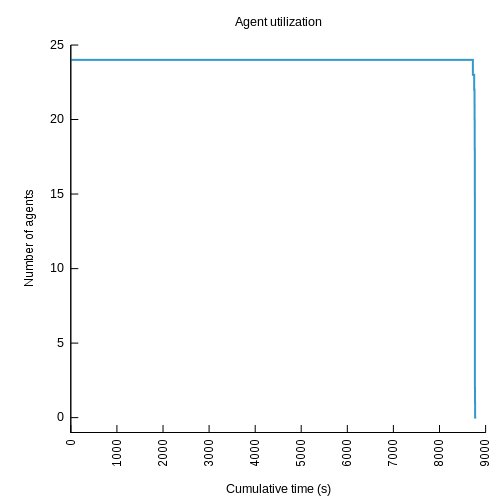
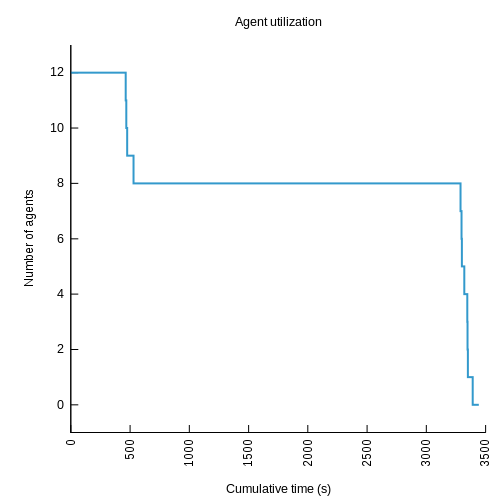
The y-axis is number of agents in use. The x-axis is cumulative build time, so a point at x-coordinate 3000 means that for a total of 3000 seconds the build used that many agents or more. Therefore in the graph above, I can see that this build used 48 agents for about 2200 seconds; it used 47 or more agents for about 2207 seconds; etc.

Similarly, you can determine how long the build ran with N agents by finding the line at y-coordinate N and comparing the x-coordinates of the start and end of that line. For example, in the graph above the line for 1 agent starts at about 3100 seconds and ends at about 4100 seconds, so the build used just one agent for a total of about 1000 seconds.

Here’s what I like about this version:

  • At a glance we can see that this build used 48 agents most of the time, but that it used only one agent for a good chunk of time too.
  • We can get a sense of the health of the build, or it’s parallel-friendliness, by the shape of the curve— a perfect build will have a steep drop-off far to the right; anything less than that indicates an opportunity for improvement.
  • We can see all data points, even those of little significance (for example, this build used exactly 35 agents for several seconds). The pie chart stripped out such data points to avoid cluttering the display.
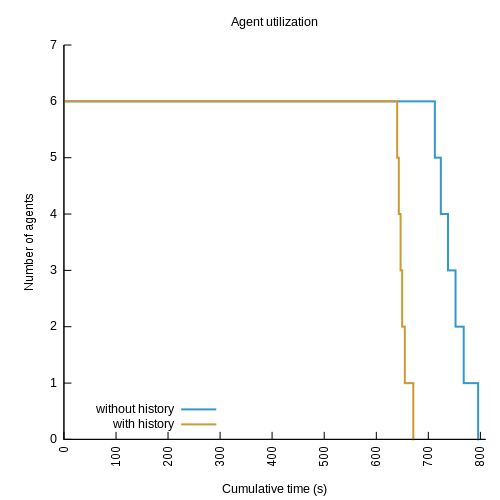
  • We can plot multiple builds on a single graph.
  • It’s easier to implement than the pie chart.

Here are some more examples:

Example of a build with great parallelismExample of a build with good parallelism
Example of a build with OK parallelismExample of a graph showing two builds at once

A glitch in the matrix

While I was generating these graphs, I ran into an interesting problem: in some cases, the algorithm reported that more agents were in use than there were agents on the cluster! Besides being impossible, this skewed my graphs by needlessly inflating the range of the y-axis. Upon further investigation, I found instances of back-to-back jobs on a single agent with start and end times that overlapped, like this:

<job id="J00000001">
  <timing invoked="1.0000" completed="2.0002" node="linbuild1-1"/>
</job>
<job id="J00000002">
  <timing invoked="2.0000" completed="3.0000" node="linbuild1-1"/>
</job>

Based on this data, it appears that there were two jobs running simultaneously on a single agent. This is obviously incorrect, but the naive algorithm I used last time cannot handle this inconsistency — it will erroneously consider this build to have had two agents in use for the brief interval between 2.0000 seconds and 2.0002 seconds, when in reality there was only one agent in use.

There is a logical explanation for how this can happen — and no, it’s not a bug — but it’s beyond the scope of this article. For now, suffice to say that it is to do with making high-resolution measurements of time on a multi-core system. The more pressing question at the moment is, how do we deal with this inconsistency?

Refining the algorithm

To compensate for overlapping timestamps, I added a preprocessing phase that looks for places where the start time of a job on a given agent is earlier than the end time of the previous job to run on that agent. Any time the algorithm detects this situation, it combines the two jobs into a single “pseudo-job” with the start time of the first job, and the end time of the last job:

    $anno indexagents
    foreach agent [$anno agents] {
        set pseudo(start)  -1
        set pseudo(finish) -1
        foreach job [$anno agent jobs $agent] {
            set start  [$anno job start  $job]
            set finish [$anno job finish $job]
            if { $pseudo(start) == -1 } {
                set pseudo(start)  $start
                set pseudo(finish) $finish
            } else {
                if { int($start * 100) <= int($pseudo(finish) * 100) } {
                    set pseudo(finish) $finish
                } else {
                    lappend events \
                        [list $pseudo(start)  $JOB_START_EVENT] \
                        [list $pseudo(finish) $JOB_END_EVENT]
                    set pseudo(start)  $start
                    set pseudo(finish) $finish
                }
            }
        }
    }

With the data thus triaged, we can continue with the original algorithm: sort the list of start and end events by time, then scan the list, incrementing the count of agents in use for each start event, and decrementing it for each end event.

Availability

You can find the updated code here at GitHub. One comment on packaging: I wrote this version of the code as an ElectricInsight report, rather than as a stand-alone script. The installation instructions are simple:

  1. Download AgentUtilization.tcl
  2. Copy the file to one of the following locations:
    • <install dir>/ElectricInsight/reports
    • (Unix only) $HOME/.ecloud/ElectricInsight/reports
    • (Windows only) %USERPROFILE%/Electric Cloud/ElectricInsight/reports
  3. Restart ElectricInsight.

Give it a try!

Blinkenlights for ElectricAcclerator

Watching builds run is boring. I mean, there’s not really much to look at, besides the build log scrolling by. And the “bursty” nature of the output with ElectricAccelerator makes things even worse, since you’ll get a long pause with no apparent progress, followed by a blast of more output than you can handle — like drinking from a fire hose. Obviously stuff is going on during that long pause, but there’s nothing externally visible. Wouldn’t it be nice to see some kind of indication of the build progressing? Something like this:

I put together this visualization to satisfy my desire for a blinkenlights display for my build. Each light represents an agent used by the build, and it lights up every time a new job is dispatched to that agent. There’s no correlation between the amount of time it takes for the light to fade and the duration of the job, since there’s no way to know a priori how long a job will take. But if the build consists primarily of jobs that are about the same length (and most builds do), then you should see a steady stream of flashes throughout.

–emake-monitor

This visualization is powered by a relative new feature in ElectricAccelerator: add –emake-monitor=host:port to the emake command-line, and emake will broadcast status messages to the specified destination using UDP. As of Accelerator 5.2.0, emake generates four types of status messages. Each message is transmitted in plain text, as a space-separated list of words. The first word indicates the type of message; the remaining words are the parameters of the message:

  • ADD_JOB jobId jobType targetName: a new job has been added to the work queue.
  • START_JOB jobId time agent: a job has started running on the specified agent.
  • FINISH_JOB jobId time: a job has finished running.
  • FINISH_BUILD: the build has completed.

All you need is a program that listens for these messages and does something interesting with them. ElectricInsight is one such program: select the File -> Monitor live build… menu option, enter the same host:port information, and Insight will render the jobs in the build in real time as they run. Not bad, but not as glitzy as I’d like.

Writing blinkenlights

My blinkenlights visualization uses just one of the messages: START_JOB. Each time it receives the message, it maps the agent named in the message to one of the lights, illuminates it, and then fades it at a fixed rate. It’s written in Tcl/Tk, naturally, using a couple great third-party extensions, so the implementation is less than 100 lines of code.

The first extension is Tkpath, which I’ve mentioned previously. I used prect items to create the “lights”, and handled the fading effect by just progressively decreasing the alpha from fully opaque to fully transparent with a series of timer events firing at a predetermined rate.

The second extension is TclUDP, which makes it trivial to connect to a UDP socket from Tcl. Once I have that socket, I can use all the regular Tcl magic like fileevent to make my script automatically respond to the arrival of a new message.

Here’s the code in full:

package require tkpath
package require udp

# fade - update the opacity of the given item to the given value.  Afterwards,
# schedules another event to update the opacity again, to a slightly smaller
# value, until the value reaches zero.

proc fade {id {count 100}} {
    global events
    .c itemconfigure a$id -fillopacity [expr {double($count) / 100}]
    incr count -5
    catch {after cancel $events($id)}
    if { $count >= 0 } {
        set events($id) [after 5 [list fade $id $count]]
    }
}

# next - called whenever there is another message awaiting on the socket.

proc next {sock} {
    global ids
    set msg [read $sock]
    if { [lindex $msg 0] eq "START_JOB" } {
        set agent [lindex $msg 3]
        if { ![info exists ids($agent)] } {
            set ids($agent) [array size ids]
        }
        fade $ids($agent)
    }
}

# Set the dimensions; my test cluster has 16 agents, so I did a 4x4 layout.

set rows 4
set cols 4
set boxx 60
set boxy 60

# Set up the tkpath canvas and the "lights".

set c [::tkp::canvas .c -background black \
           -height [expr {($boxy * $rows) + 5}] \
           -width  [expr {($boxx * $cols) + 5}]]
wm geometry . [expr {($boxx * $cols) + 27}]x[expr {($boxy * $rows) + 27}]

for {set x 0} {$x < $cols} {incr x} {
    for {set y 0} {$y < $rows} {incr y} {
        set x1 [expr {($x * ($boxx + 5)) + 5}]
        set x2 [expr {$x1 + $boxx}]
        set y1 [expr {($y * ($boxy + 5)) + 5}]
        set y2 [expr {$y1 + $boxy}]
        set id [expr {($x * $rows) + $y}]
        .c create prect $x1 $y1 $x2 $y2 -rx 5 -fill #3399cc -tags a$id \
            -fillopacity 0
    }
}
pack .c -expand yes -fill both
wm title . "Cluster Blinkenlights"
update

# Get the host and port number from the command-line.

set host [lindex [split $argv :] 0]
set port [lindex [split $argv :] 1]

# Create the udp socket, set it to non-blocking mode, then set up a fileevent
# that will trigger anytime there's data available on the socket.

set sock [udp_open $port]
fconfigure $sock -buffering none -blocking 0 -remote [list $host $port]
fileevent $sock readable [list next $sock]

# Common idiom to keep the app running indefinitely.

set forever 0
vwait forever

Future work

This is a pretty fun way to monitor the status of a build in progress, but I think there are two things that could make it even better:

  • Watch the entire cluster, instead of just one build. Because this visualization is driven by data streaming from emake, for all practical purposes it’s limited to showing the activity in a single build. I would love to instead be able to view a single display showing the entire cluster, with concurrently running builds flickering in different colors. I think that would be a really interesting display, and might provide some insight into the cluster sharing behaviors of the entire system. I think to really do that properly, we’d need to be intercepting events from every agent, but unfortunately the agent doesn’t have a feature like –emake-monitor.
  • Make it an actual physical gadget. It might be fun to wire together some LED’s, maybe controlled by an arduino or something, to make a tangible device that could sit on my desk. It’s been a long, long time since I’ve done anything like that though. Plus, if there are a lot of agents in the cluster, it may be costly and impractical to manufacture.

What do you think?